Lab topologies
Lab devices
The following devices are available in the Cisco Modeling Labs (CML) topology.
| Device | IP Address | Username | Password |
|---|---|---|---|
| core | 198.18.130.10 | cisco | cisco |
| access01 | 198.18.130.11 | cisco | cisco |
| access02 | 198.18.130.12 | cisco | cisco |
| border | 198.18.130.20 | cisco | cisco |
| isp | 198.18.130.200 | cisco | cisco |
| host01 | 192.168.100.100 | cisco | cisco |
| host02 | 192.168.100.200 | cisco | cisco |
| ntp-server | 198.18.129.11 | cisco | cisco |
| syslog-server | 198.18.129.12 | cisco | cisco |
SSH from WSL Terminal
To connect via SSH from your WSL terminal, use:
For example:ssh cisco@198.18.130.10
Host Device Connectivity
The host devices (host01 and host02) are not reachable from your lab Win10 VM or Ubuntu VM. They are only reachable from CML - see below.
Lab VMs
| Device | IP Address | Username | Password | Interface |
|---|---|---|---|---|
| Windows 10 VM | 198.18.133.20 | admin | cisco | rdp |
| CML | 198.18.130.34 | guest | CiscoLive | web |
| Ubuntu VM | 198.18.133.101 | guest | CiscoLive | ssh |
| GitLab | 198.18.133.101 | root | C1sco12345 | web |
Ubuntu VM and GitLab share a host
The Ubuntu VM and GitLab entries above both show 198.18.133.101 - that's not a typo. They're the same underlying VM, accessed as two different services:
- SSH as
guest→ you get an Ubuntu shell - HTTPS as
root→ you get the GitLab web UI
GitLab runs as a containerized application on top of the Ubuntu host. You won't SSH into this VM during the lab (the pipeline work happens in the GitLab UI), but it's useful context if you ever see the shared address and wonder which credentials to use.
Self-signed Certificates
The CML and GitLab web interfaces use self-signed SSL certificates. Your browser may show a warning when accessing these sites. You can safely ignore the warning and proceed to the site.
Below is the dCloud lab topology diagram:
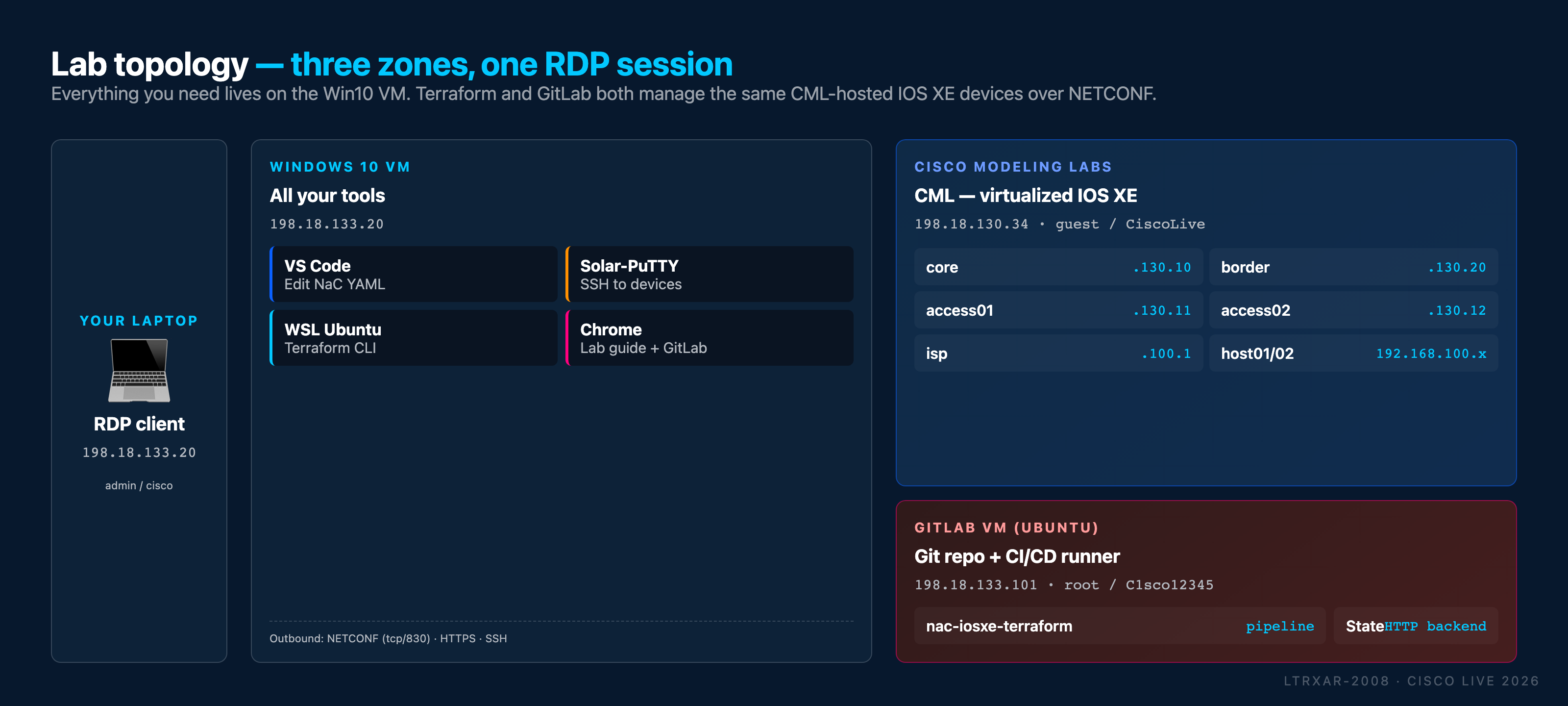
This lab consists of:
- Multiple IOS XE virtual switches running in CML (Cisco Modeling Labs - network simulation platform)
- GitLab as Git repository and to run CI/CD pipelines, running in an Ubuntu VM
- Windows 10 VM with:
- VS Code for editing Infrastructure as Code YAML files
- Solar-PuTTY SSH client to access the IOS XE devices
- Windows Subsystem for Linux (WSL) to run Terraform, and other command-line tools
- Google Chrome Web Browser to read this lab guide and access GitLab
The topology below shows the IOS XE devices running in Cisco Modeling Labs (CML). CML is a network simulation platform that allows you to create virtual network environments using real Cisco operating systems like IOS XE. In this lab, CML hosts three Catalyst 9000v virtual switches (access01, access02, and core) and a Catalyst 8000v virtual router (border) that you'll configure using Network as Code:
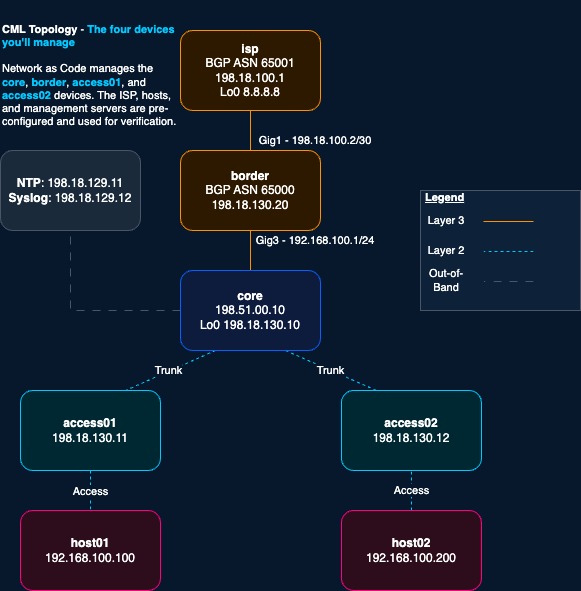
The isp device simulates an external Internet Service Provider connection for BGP routing. It has a loopback interface configured with IP address 8.8.8.8.
The host devices (host01 and host02) are ubuntu-based simulated end-user devices connected to the network. They are configured with static IP addresses and default gateway 192.168.100.1.
Additional Servers
The lab topology also includes ntp-server and syslog-server devices. Similarly to the host devices, these are empty Ubuntu VMs, only intended to perform reachability tests from the IOS XE devices.